
A slow WordPress site costs traffic, rankings, and sales—these 30 expert tips will help you speed it up and perform better.
Before we dive into the 30 tips to speed optimization, it’s important to understand a few basics first.
Is your wordpress website loading slow? A slow website can cause frustration among visitors and negatively impact your search engine rankings. Fortunately, there are many ways to speed up your WordPress site that work well. In this article, we will examine ten practical strategies to improve your website’s pace and optimize its overall performance.
What is Website Performance?
Website performance described as how quickly a site loads when user enters or browse based on user actions, and lets users browse without any problems on any device. It is measured by things like how fast a website page loads, responsiveness, how quick, and visual stability.
How to Improve Website Performance?
- Optimize Images
- Enable Caching
- Minimize HTTP Requests
- Use a Content Delivery Network (CDN)
- Optimize Code & Reduce Unused CSS/JS
In This article we provides the concept of page speed, its significance, methods of measurement, and 30 proved strategies to enhance website performance.
What is Page Speed?
WordPress page speed refers to the period of time required for a web page to completely load following a user’s click. When we think about page speed, we mean how quickly we see wordpress images, text, and scripts appear on the screen.
When we optimise page speed for improvement , you get a smoother experience, higher engagement, and happier users. At the same time, your website benefits from better search engine rankings on platforms like Google.
PageSpeed Insights (PSI) tells you how a page works for users on both mobile and desktop devices and gives you ideas on how to make it better.
PSI gives information about a page from both the lab and the field. Because it is collected in a controlled setting, lab data can help you figure out what’s wrong. But it might not show delays in the real world.
Field data can help you get a better picture of how users really feel in the real world, but it only has a few metrics you can use to measure it. For more on the two kinds of data, read How To Think About Speed Tools.
Why is Page Speed Important?
How well your site ranks in search engines, how many people buy something, and how users feel about it all depend on how well the pages work. Search engines like website page speed test google prefer fast pages because they keep users on the page longer and lower bounce rates. Pages that take a long time to load make visitors unhappy, which means fewer sales and fewer customers who stay with you.
How to Measure Website Speed and Performance?
You can use Google PageSpeed Insights, GTmetrix, and WebPageTest to see how quickly a website loads. These tools tell you things like when things started, how well they did, and how to improve them.
You can also tell how well the site is working by looking at Core Web Vitals like Largest Contentful Paint, First Contentful Paint, Total Blocking Time, Cumulative Layout Shift, and Speed Index.
What is a Good Website Speed?
If the website is fast, people should be able to see the information on the page and do something with it in less than three seconds. Based on how users feel about it, the page should meet Core Web Vitals standards:
1. First Contentful Paint (FCP)
- Good: 0 – 1800 ms
- Needs Improvement: 1800 – 3000 ms
- Poor: Over 3000 ms
2. Largest Contentful Paint (LCP)
- Good: 0 – 2500 ms
- Needs Improvement: 2500 – 4000 ms
- Poor: Over 4000 ms
3. Cumulative Layout Shift (CLS)
- Good: 0 – 0.1
- Needs Improvement: 0.1 – 0.25
- Poor: Over 0.25
4. Interaction to Next Paint (INP)
- Good: 0 – 200 ms
- Needs Improvement: 200 – 500 ms
- Poor: Over 500 ms
5. Time to First Byte (TTFB) (Experimental)
- Good: 0 – 800 ms
- Needs Improvement: 800 – 1800 ms
- Poor: Over 1800 ms
Mobile vs Desktop Performance:
- Mobile targets: Typically 30-40% slower than desktop
- Desktop targets: Can be 1.5-2x faster than mobile
Impact on Business Metrics:
- +0.1s faster load time → 8% conversion increase
- +1s slower load time → 7% reduction in conversions
- 53% of mobile users abandon sites taking >3 seconds to load
These numbers were based on Google’s Core Web Vitals thresholds and the standards that are currently used in the industry. The values are very important for both SEO and making the user experience better.
To reach this goal, you need to get data on how well both desktop and mobile users are doing. This is because on mobile often need more changes to work as quickly as desktops. People don’t have much patience with mobile devices, so pay attention to how fast they are.
Read Google’s insights to learn more about these limits and what they mean.
30 Proven Tips to Speed Up Your Slow WordPress Website
1. Invest in Design

Invest in a good design team that offers a solid understanding of integrating functionality with visual appeal. The website should be easy to use and look good at the same time.
2. Keep things minimal
Apply dropdown menus and hamburger menus to minimize clutter, particularly on mobile displays with limited screen space. Ensure that the primary links (product catalog, Cart, FAQs, Help, Contact) are readily accessible with minimal navigation. Avoid requiring consumers to navigate through multiple links to access the information they seek.
When you can, add number of things like image carousels, animated excerpts, videos, and other things like that. Give people the information they need while keeping them interested.
When you text someone, keep it short and clear. No one can read long, complicated paragraphs. Use short sentences and break up your paragraphs regularly. To get the message across, stress shortness.
Test Cross-Browser and Cross-Device Compatibility on Real Devices
3. Optimize Your Images
Images are an important part of any website, but if they are too big, they can make your pages load much more slowly. Before you upload your pictures to WordPress, make sure to compress them. Plugins like WP Smush or EWWW Image Optimizer can help you do this automatically.
4. Choose a Reliable Hosting Provider

A website can be very well-designed, with quick page load times and great products and services. However, if a customer is unable to access the site through their preferred browser, device, or operating system, none of these considerations are relevant.
Developers and stakeholders need to make sure that their site works with all major browsers, browser versions, devices, and platforms that are widely used. Cross Browser Testing and cross-device testing on real browsers and devices are the only ways to make sure that everything works with all of them.
Testers must test website rendering and usability in real User environment which means on multiple different browser, device and OS combinations. There are nearly 63,000 potential permutations of the popularly deployed browsers, platforms and devices.
In order to perform true cross-browser compatibility testing, QA teams must have availability of an extensive on-premise device lab that is continuously updated with the latest devices.
For teams that don’t have an in-house device testing lab, testers can take advantage of BrowserStack’s cloud-based ecosystem with 3,500+ real browsers and devices.
Manual testing or automated Chrome testing, BrowserStack helps testers achieve 100% accurate results with real world conditions.
Testers can also use Cypress testing on more than 30 real browser versions.
foundation of a fast WordPress site is a reliable hosting provider. Shared hosting plans can be cost effective but may not offer the best performance. Consider upgrading to a managed WordPress hosting service or a Virtual Private Server (VPS) to ensure your site runs smoothly.
Starter Websites: Standard Hosting Plans
- Ideal for: New websites, simple static sites, basic portfolios
- Cost: Low-cost, budget-friendly
- Best suited for: Sites with minimal updates and basic elements
- Limitations: Shared resources, limited scalability, slower performance with growth
5. Growing Websites: The Need to Upgrade

As your website evolves, standard hosting becomes insufficient. Regular updates—including new content, images, videos, and interactive elements—require more robust hosting to:
- Maintain fast loading speeds
- Handle increased traffic
- Support dynamic content
- Ensure seamless user experience
Recommended Hosting Upgrades
For better performance and scalability, consider:
A. Managed WordPress Hosting
- Optimized specifically for WordPress
- Automatic updates and backups
- Enhanced security features
- Expert WordPress support
- Better speed and reliability
B. Virtual Private Server (VPS)
- Dedicated resources (not shared)
- Full control over server environment
- Scalable as your site grows
- Better performance for medium to high-traffic sites
Benefits of Proper Hosting
🔶 Improved Site Speed – Critical for user experience
🔶 SEO Advantages – Faster sites rank higher in search results
🔶 Better Reliability – Reduced downtime and better uptime
🔶 Enhanced Security – Protection against threats and attacks
🔶Scalability – Handles traffic spikes and growth seamlessly
6. When to Upgrade Your Hosting Plan
Consider upgrading when:
- Your site experiences slow loading times
- You’re regularly adding multimedia content
- Traffic is increasing consistently
- You’re implementing e-commerce or membership features
- You need better security and backup solutions
7. Optimize website speed

This may seem that a delay of just a few seconds in page load time is insignificant; however, a one-second delay results in an 11% reduction in page views, a 16% decline in customer satisfaction, and a 7% decrease in conversions. Optimizing a website for optimal speed should be a primary priority for web developers and evaluators.
To accurately determine the rendering speed of a webpage across different browsers and devices, developers and quality assurance professionals can utilize SpeedLab, a complimentary tool provided by BrowserStack.
This is intended for conducting website performance assessments across various actual browser and device configurations. Enter the URL, and the utility will evaluate the website’s performance across a variety of commonly used device and browser configurations.
8. Use a Lightweight WordPress Theme
Choosing a good theme is a key choice that includes much more than just looks.
Themes can significantly influence the performance of your website. Choose a lightweight, efficiently coded theme such as the Accelerate WordPress Theme. Avoid themes that contain numerous unnecessary built-in features, as they may introduce unnecessary complexity to your site.
A big theme loads unnecessary scripts and stylesheets on each page, regardless of whether you utilize its numerous sliders, portfolios, or animation effects, which can substantially impair your performance. Therefore, prioritizing a theme designed with efficiency and streamlined code is a fundamental step in developing a website with rapid loading times.
9. Minimize HTTP Requests
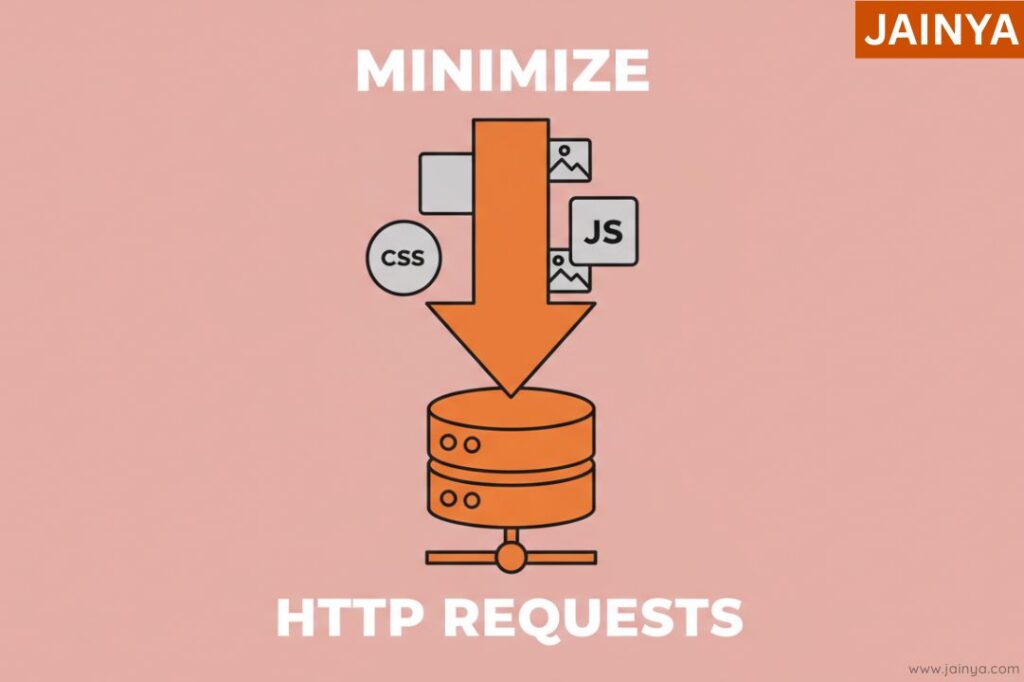
Every component required to complete web page rendering initiates an individual HTTP request to the server. Consequently, if ten CSS files are required, ten HTTP GET requests would be initiated for a single webpage. Clearly, an increased number of HTTP requests will diminish website performance.
Each component of your webpage, including images, scripts, and stylesheets, demands an HTTP request. Minimize these requests by consolidating files, eliminating redundant plugins, and utilizing a plugin such as Autoptimize to optimize and minify your code.
To minimize HTTP request overhead, developers can consolidate files, especially CSS and JavaScript files. They can also utilize CSS sprites – merging tiny images into a single, larger image. Merely modify the background-position CSS property to exhibit the desired image.
Essentially, take all feasible measures to minimize HTTP requests in order to accelerate webpage loading times without losing quality.
10. Enable Caching
Caching is an effective technique for enhancing the performance of your WordPress website. By maintaining static copies of your pages, caching diminishes the quantity of data fetched from the server, thereby enhancing load speeds. Utilize caching extensions such as W3 Total Cache or WP Super Cache to facilitate straightforward implementation.
Beyond the initial setup, it is essential to tailor your caching solution to meet your site’s particular requirements – such as establishing expiration times for cached content, activating browser caching for returning visitors, and employing object or database caching for dynamic components.
Regularly erasing or preloading the cache following updates guarantees that visitors consistently view the most current version of your website without compromising performance.
11. Optimize Your Database

Over time, your WordPress database may accumulate duplicate data. Consistently maintain your database through regular clean-up procedures to enhance its efficacy. Plugins such as WP-Optimize can assist with duties including the removal of post revisions, spam comments, and unused database tables.
12. Implement a Content Delivery Network (CDN)
A Content Delivery Network (CDN) maintains replicas of your website across global servers, providing content to visitors from the geographically nearest server. This decreases the duration required for your website to launch, particularly for international visitors. Services such as Cloudflare and StackPath provide exceptional Content Delivery Network (CDN) solutions.
13. Deactivate Unnecessary Plugins
Each plugin you install introduces code that could affect your site’s performance. Periodically evaluate your extensions and deactivate or remove any that are non-essential. Consider utilizing custom code for minor functionalities rather than depending on extensions.
14. Optimize CSS and JavaScript
Minifying your CSS and JavaScript files involves eliminating useless characters such as whitespace and remarks to decrease their overall size. Tools such as the WP Rocket plugin can assist in automatically minifying and concatenating these files, thereby further enhancing your site’s performance.
15. Keep WordPress Updated
Keeping current versions of your WordPress core, themes, and plugins is essential for best performance and security. Updates frequently incorporate enhancements and problem repairs that can improve your website’s performance. Activate automatic updates or routinely verify for updates within your WordPress admin.
16. Decentralize loading of website assets and features
Utilize third-party web services to install certain site assets and functionalities. This decreases the load on a single web server by distributing the collection of page components across multiple servers.
For example, utilize Flickr for image rendering, Feedburner for managing RSS feeds, and similar services. Nevertheless, exercise caution regarding the potential implications of entrusting third-party services with the management of website data. This method is not advised when handling sensitive information such as customer identification data, financial data, and similar data.
17. Keep an eye on web server performance

The web server is the component responsible for executing the operations. It transmits and receives HTTP requests and responses that deliver the appropriate page components and guarantee the website functions as intended.
Certainly, overseeing the success of web servers is essential to guarantee that the website operates at optimal levels.
Check web server statistics as frequently as feasible. If performance levels decline, implement any necessary adjustments. Evaluate the performance benchmarks prior to and following the implementation of optimization measures to ensure that the efforts are effectively producing the desired outcomes.
Benchmarking is also essential to assess whether the server requires an upgrade or if the site should be migrated to a different server.
As previously stated, when the website undergoes revisions, its existing server may be inadequate to accommodate additional elements, increased traffic, and other operational demands.
18. Write Mobile-First Code
Start by designing and developing your website optimized for mobile devices. Mobile-first development ensures that your website remains simple and efficient, focusing essential features optimized for smaller screens.
This approach further improves loading efficiency on all devices, as mobile optimization generally eliminates unnecessary components.
19. Load JavaScript Asynchronously
Loading JavaScript asynchronously guarantees that scripts don’t restrict the loading of other parts of your webpage. This reduces the amount of time viewers need to spend to interact with your website. Implement the timing or defer attributes for external scripts to enhance the loading efficiency of critical resources.
20. Consider Using Prefetch, Preconnect, and Prerender Techniques
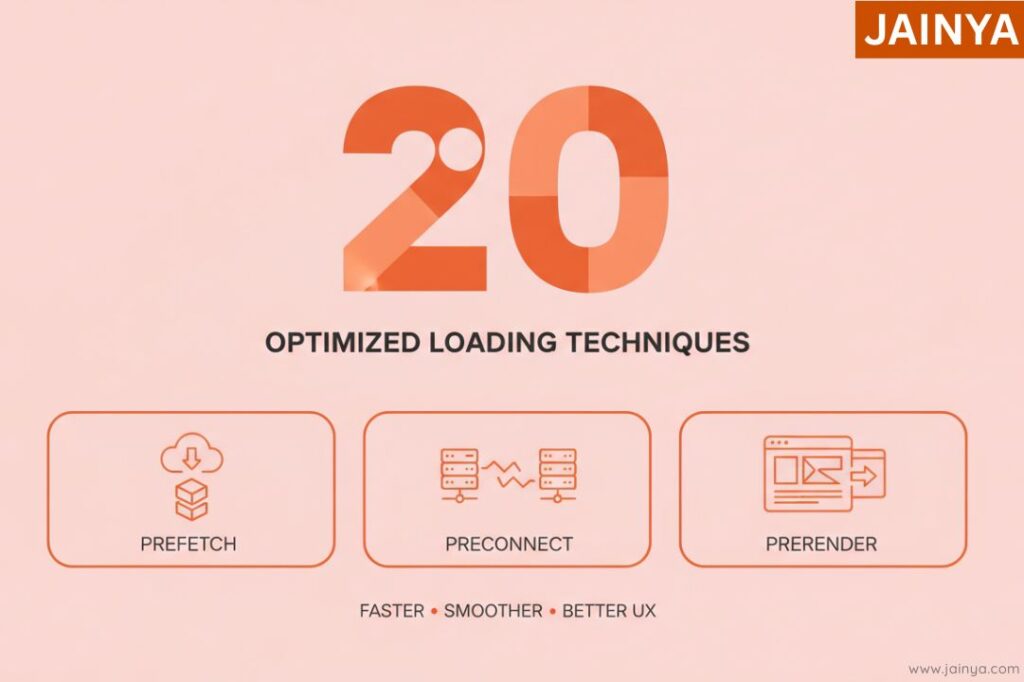
These techniques proactively allocate resources and establish connections, thus reducing loading times and improving the overall user experience.
- Prefetch: Preloads resources that the user is likely to require subsequently, thereby minimizing delay time.
- Preconnect: Establishes initial connections to servers, thereby accelerating the resource extraction process.
- Prerender: Preloads an entire page that the user is likely to visit subsequently, ensuring smooth transitions.
21. Evaluate Your Current Hosting Provider
Your hosting provider influences server response times and overall performance. If your website remains sluggish despite optimization efforts, consider upgrading to a more advanced hosting plan or transitioning to a provider that delivers superior performance. Select a managed hosting provider or a Content Delivery Network (CDN).
22. Use browser HTTP caching
Activate HTTP caching to keep unused resources, such as images, CSS files, and JavaScript, within a user’s browser. This enables returning visitors to access your site more quickly, as these resources do not require re-download. Establish cache expiration policies to optimize both performance and data validity.
23. Use Real Devices to Test Performance of your Website
Simulating performance on actual devices offers precise insights into how your website functions across various screen resolutions, operating systems, and browser configurations. Tools such as BrowserStack enable comprehensive testing of your website on real devices, guaranteeing optimal performance for all users regardless of their environment.
24. Use the Latest PHP Version

Running WordPress on the latest stable PHP version (like PHP 8.x) improves execution speed and reduces server resource usage.
25. Enable GZIP Compression
Compressing HTML, CSS, and JavaScript responses at the server level reduces payload size and speeds up page delivery.
26. Implement Lazy Loading for Images and Media
Deferring the loading of offscreen images, videos, and iframes until users scroll to them significantly cuts initial load time.
27. Limit Post Revisions and Autosaves
Restricting the number of stored revisions keeps the database lean and reduces query overhead.
28. Reduce Redirects and Broken Links
Cleaning up unnecessary redirects and fixing broken links removes extra HTTP round trips and improves perceived performance.
29. Disable Hotlinking of Your Media
Blocking other sites from directly using your images saves bandwidth and maintains consistent load times under traffic spikes.
30. Optimize Background Tasks and Cron Jobs
Rescheduling or disabling heavy background jobs (backups, imports, scans) during peak traffic prevents CPU and memory bottlenecks.
What This Means for You
It’s important to make your WordPress site faster so that users have a better experience and your search engine ranking goes up.
Following these ten tips will make your website work much better and keep your visitors interested.
Remember that a website that loads quickly makes users happy and also increases your conversion rates. Today is the day to speed up your WordPress site. You’ll see how much better it is to have a site that loads quickly.
BrowserStack and other tools are good for testing a website on a wide range of devices, browsers, and versions. It has tools like Live for testing by hand on real devices, Automate for running automated tests on a large scale, Percy for checking visuals, and the Responsive Tool for checking how your website works on different screen sizes and resolutions.
BrowserStack’s comprehensive suite of testing tools facilitates early detection of issues and enhances your website to deliver an impeccable user experience.
Leave a Comment